Want to create your own free broken link checker with Google Sheets?
Anyone who works in SEO, marketing, or development has lived through the same pain: a long list of URLs from Google Search Console, a crawl report, or a client audit… and no quick way to see which links are actually broken and which ones just looked suspicious to the tool that flagged them. Unless you want to click through hundreds or thousands of links to see what they point to... which, in the words of Kimberly "Sweet Brown" Wilkins, "Ain't nobody got time for that."
You know fixing broken links is important.
A growing list of 404s can hurt rankings, slow down crawlers, interrupt user paths, and inflate error reports that make diagnosing real problems harder than it needs to be. But before you redirect anything, you need to confirm one simple thing:
Is this URL truly a 404—or is the tool giving you a false positive?
This happens more than people realize. You might see URLs flagged because the server was slow at the time of the crawl, because the URL redirects in a way the crawler didn’t follow, because parameters changed, or because the link only breaks when triggered from a specific source.
For SEOs, this matters because unnecessary redirects create new technical debt.
For developers, this matters because you want accurate data before digging into logs.
For marketers, this matters because you need clean paths in campaigns, emails, and landing pages.
And instead of manually checking dozens—or hundreds—of URLs one by one, Google Sheets gives you a surprisingly easy way to bulk-check them.
Why This Trick Saves Hours of Busywork
This method lets you:
• Validate long lists of links from Search Console
• Confirm whether landing pages from old campaigns are still live
• Check redirects after a site migration
• Verify that internal links inside blog posts still resolve
• Test outbound links to ensure you’re not sending users to bad destinations
• Audit partner, affiliate, or resource links
• Clean up legacy pages after a site redesign
And the best part: the entire process happens right inside Google Sheets.
How to Turn Google Sheets Into a Bulk 404 Checker
Ready to get started? Ok, here we go!
Step 1: Set Up Your Sheet for Testing
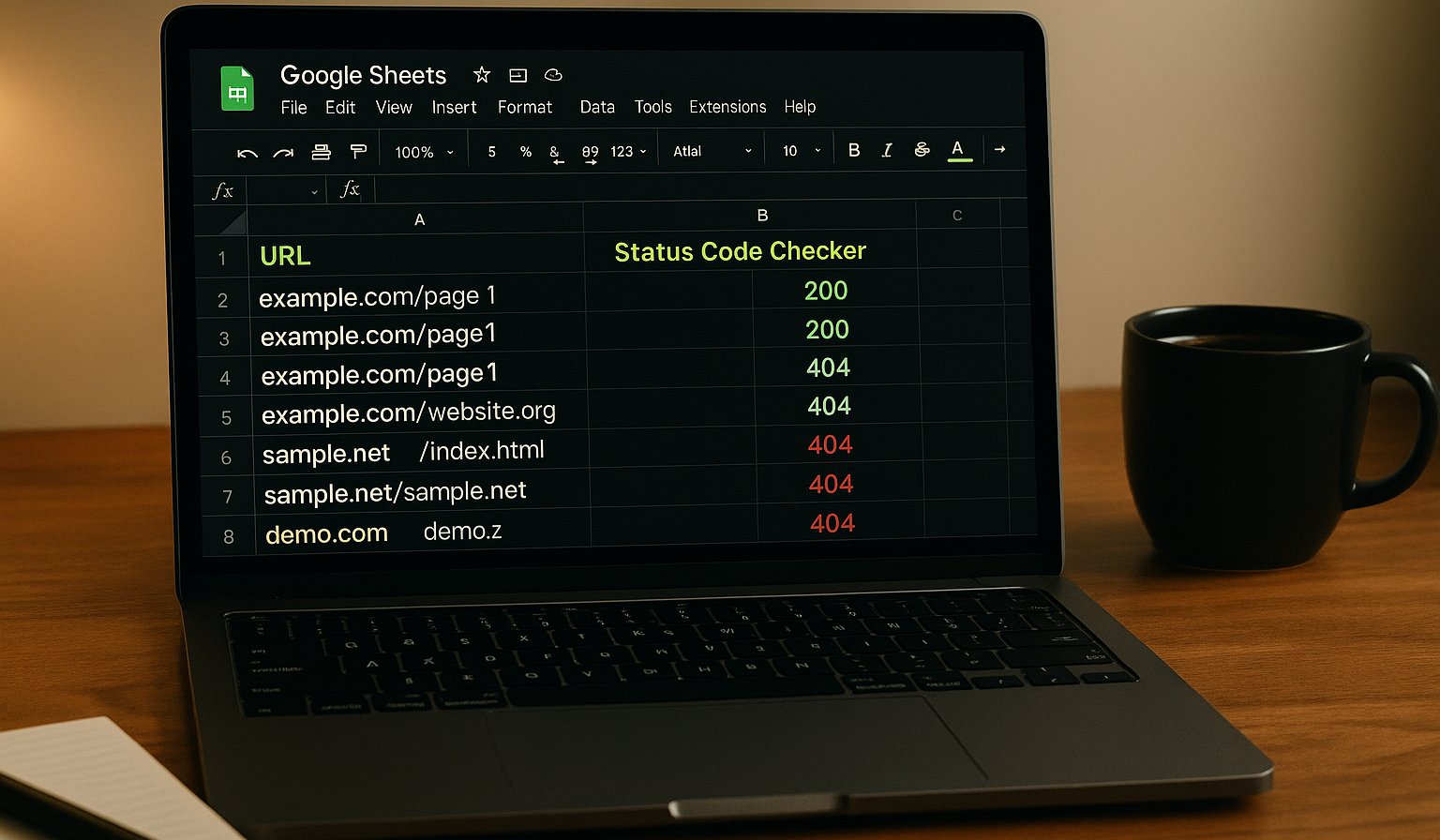
Start with a fresh Google Sheet and drop your URLs into a column—any column. Then create a second column where the status code results will appear.
Think of it like:
Column A = URLs
Column B = Status Code Checker
That’s all you need before adding the script.

Step 2: Create the Script That Checks Status Codes
Here’s where the magic happens.
In Google Sheets, go to Extensions→ Apps Script. Google will create a new Apps Script file and give you a placeholder function. Remove the placeholder function and name your file, and then paste in the initial status checker function.
The initial version of the function looks like this:
function getStatusCode(url){
var response = UrlFetchApp.fetch(url);
return response.getResponseCode();
}

What this does:
• Takes in a URL
• Fetches it
• Returns the HTTP status code
Codes to note:
200 = Good
404 = Not Found
3xx = Redirect
and so on.
However, this rough version has limits. Fetching only returns successful responses and follows redirects—meaning you’ll get misleading results or outright errors for anything that isn’t a clean 200.
So we improve it in step 5 - but first, let's test to make sure the rough version is working.
Step 3: Test the Function in Your Sheet
On the right-hand side, click the blue “DEPLOY” button. When the window opens, click the settings icon next to “Select type” and choose "Web app".
Give your deployment a clear name, set the appropriate access permissions, and, if you feel like sharing this greatness today, make it available to your team.

Now that your function is saved, go back to your spreadsheet (but leave the function window open for later steps).
In the cell next to your first URL, enter:
=getStatusCode(A2)
If you see #ERROR! - It's a 404 page. If you see a 200 code, then the page is seemingly good to go, and the link is not broken.
(Note - if you see anything else, make sure the columns format is set to number -> automatic)
But this early version has two problems:
-
It returns errors for codes outside the 2xx range, which interrupts workflow.
-
It follows redirects automatically—so a URL that returns 301 → 200 will misleadingly appear as 200 only.
So we refine the script to handle real-world behavior.
Step 4: Strengthen the Script to Capture Real Status Codes
Here’s the improved version that avoids false readings and handles redirect logic correctly:
function getStatusCode(url){
var options = {
'muteHttpExceptions': true,
'followRedirects': false
};
var url_trimmed = url.trim();
var response = UrlFetchApp.fetch(url_trimmed, options);
return response.getResponseCode();
}
Just replace your script, and click the save icon at the top to update your script.
Now the results should have more specific codes to work with.
As a reminder -
200 = Good
404 = Not Found
301, 302, 3XX = Redirect
500 = Server Error
and so on.
What changed and why:
• muteHttpExceptions: true — prevents the script from breaking when the server throws an error, allowing us to capture the status code instead.
• followRedirects: false — keeps redirects from being “hidden” behind a final 200 code.
• url.trim() — removes accidental spaces that can make a working URL look broken.
Once you save this version and test again, your sheet will correctly identify 200s, 404s, 503s, 301s, and more—all without throwing messy error messages.
This alone solves most use cases. But if you’re handling very large lists, there’s one more upgrade you’ll want.
Step 5: Prevent Hitting Google’s Daily Request Limits
If you run enough URLs, Google will eventually throw a quota error:
“Service invoked too many times for one day: urlfetch.”
To avoid that—and to speed up repeat checks—you can cache results. This prevents the script from fetching the same URL over and over.
Here’s the optimized version:
function getStatusCode(url) {
var url_trimmed = url.trim();
var cache = CacheService.getScriptCache();
var result = cache.get(url_trimmed);
if (!result) {
var options = {
'muteHttpExceptions': true,
'followRedirects': false
};
var response = UrlFetchApp.fetch(url_trimmed, options);
var responseCode = response.getResponseCode();
cache.put(url_trimmed, responseCode, 21600); // 6 hours
result = responseCode;
}
return result;
}
Now your spreadsheet can handle hundreds—or thousands—of links without falling over.
Save time with Google Sheets Scripts
This tiny script turns Google Sheets into a lightweight diagnostics tool that every SEO, marketer, and developer should keep in their back pocket. It saves hours of manual checking, eliminates guesswork in Search Console reports, and ensures you’re working with real status codes—not assumptions.
If you’re tackling a large audit, migration, or cleanup and want support tightening the technical side of your SEO, we’re here to help make the process smooth.
Need help with technical SEO or site cleanup?
Book a Consultation with Us Here
Or Learn More About Our SEO Services Here


 Heather Harrington



 William McCulley: Sep 25, 2026, 10:15:00 AM



.png)